Plenty of indie directors keep the lights on between features by shooting music videos for local bands. The shoot is the fun part. The pain arrives at 2am, when you’re trimming the final chorus and still typing lyric timecodes into a blank SRT file, line by line, because the teaser will autoplay on mute in every feed and the words have to land on the beat. In the spirit of Film Threat’s DIY how-tos, here are six tools that turn a finished track into timed subtitles you can drop into Premiere or Resolve, so the lyrics are locked before sunrise and you can get back to the edit.
How We Chose These Tools

Every tool here had to clear three must-haves: turn an audio or video file into timed text, let you adjust each line’s in and out points, and export a clean SRT for Premiere or Resolve. We then weighed how well each one handles sung vocals rather than dialogue, how much control it gives over timing, and where it runs. Neural Frames is the only one built for songs; the other five are strong caption tools that need one lyric polish pass.
1. Neural Frames
Neural Frames starts where speech-first caption tools struggle: inside the song. Its song to lyrics tool takes an MP3, WAV, M4A, FLAC or OGG file up to 20 MB and ten minutes long, transcribes the sung lyrics and times each line.
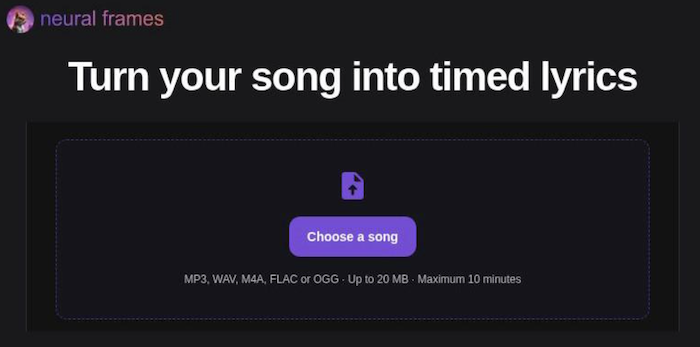
The Neural Frames song to lyrics tool accepts MP3, WAV, M4A, FLAC and OGG files.
You then listen back, correct any words, adjust each line’s start and end time, and add lines the transcription missed. When the lyrics look right, pick your export. An SRT carries start and end times for any video editor, while an LRC stores start times for synced-lyrics players.
The tool page itself works on a 30-second excerpt, which is enough to check how it handles your vocalist; the full song is analyzed inside the Neural Frames app. From there the same track can go straight into a Neural Frames lyric video, with the words generated inside the scene. Singing, layered vocals and instrumental intros can still confuse any transcription, so give the lines one careful listen before export.
2. Kapwing
Kapwing runs entirely in the browser, so there is nothing to install. Drop in a music video or audio track and its automatic subtitle generator writes the captions, which you can then correct and retime in the editor.
When the transcript looks right, you can burn the subtitles into the clip or download them as SRT, VTT or TXT files for Premiere, Resolve or any other editor. Its subtitle translator covers more than 100 languages, which helps when one video needs captions for several markets.
The catch is the same as with most caption tools: it is built around speech. Harmonies, doubled vocals and ad-libs may drift, so plan a quick polish pass on the chorus.
3. VEED
VEED feels like Kapwing’s close cousin. Its auto subtitle generator transcribes the track into editable lines, and a built-in translator turns the finished captions into other languages without a second upload.
VEED says its generator reaches “up to 99.9% accuracy”. That is the company’s own claim, not a lab result, so proofread the lyrics before delivery.
Exports match the rest of its suite: burn the captions in, or download SRT, VTT or TXT files. Like Kapwing, it is tuned for dialogue, so stacked vocals may need a manual fix. For multi-language deadlines, it is a practical middle option.
4. CapCut
CapCut, the editor behind countless short-form clips, runs on web, desktop and mobile. Its auto captions feature listens to the clip and writes the text onto the timeline, where you can slide any line back onto the beat.
When the lyrics line up, export them as a subtitle file or burn them straight into the video for quick social posts. Features change often between versions, so check the export panel before you commit to it for a deliverable.
Because it was designed for talk-heavy shorts, stacked vocals may wander. Fixing captions in the same window where you trim the video still saves time.
5. Happy Scribe
Happy Scribe is a transcription and subtitling service with an online editor where you correct the transcript and trim each line’s timing against the audio.
That helps when a guitar solo runs longer than the singer’s breath: you can find the gap, move to the next line and keep the captions on the beat. Its SRT generator exports the finished subtitles as an SRT file.
Its marketing centers on dialogue, so stacked vocals still need a manual pass. For editors who want a careful transcript-first workflow in the browser, it is a solid choice.
6. Subtitle Edit
Subtitle Edit is the open-source workhorse you install when exact timing matters more than polish. It adds speech-to-text through Whisper for a first pass, then gives you waveform and spectrogram views so you can adjust each line’s start and end position by hand.
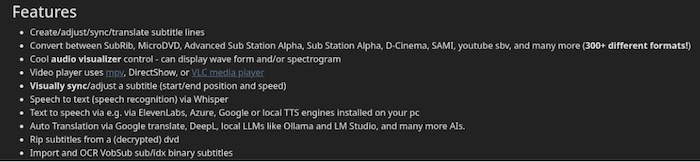
Subtitle Edit’s feature list, from the project’s own site.
Format support is its other strength: the project lists more than 300 subtitle formats, from SubRip (SRT) to D-Cinema. Whisper was built for speech, so dense harmonies may slip, and the learning curve is steeper than in the browser tools. It pays off when the mix is messy or the director wants offsets measured in milliseconds.
All six handle the core job of turning music into timed subtitles. Everything except Neural Frames began as a speech tool, so plan a lyric cleanup pass unless you start with the song-first option.
The Final Cut
One sleepless director, six tools, and lyrics that stay on the beat. Choose Neural Frames when the song takes center stage, or reach for Kapwing or VEED when captions are one step in a multi-language chain, and Subtitle Edit when timing has to be exact. Whichever route you pick, replay every line before you render. Tight subtitles can make a great track sing, even on mute.