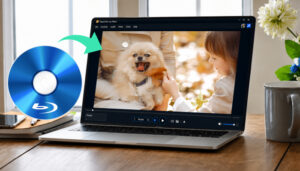
When we talk about playing Blu-rays, a TV is often the first choice. But now that many of us have access to computers more than TVs, playing Blu-ray on a PC sounds appealing. How to play Blu-ray on a computer? Though it’s not as simple as with a TV, there are some relatively easy solutions. Let’s know about the challenges and the work to do.
What’s Challenging About Playing Blu-ray on PC
Computers lack support for Blu-ray.
Gone are the days when computers came with built-in disc drives. Moreover, most modern computers don’t have native support for Blu-ray playback. So, to play a Blu-ray on your PC, you’ll need to prepare a physical drive and third-party player software.
Disc restrictions are hard to walk around.
Many Blu-ray discs, especially commercial ones, are encrypted with Digital Rights Management (DRM). This causes most video players to fail, because they can’t bypass this digital lock.
It is even more difficult to play a 4K Blu-ray on a PC: Intel discontinued SGX in 2022, which your PC needs to verify the copyright on 4K Blu-ray discs. As a result, many modern PCs with later CPUs can’t play 4K directly. That’s why we need a dedicated 4K Blu-ray player for PC. If it still fails or plays it downscaled, ripping the Blu-ray to a digital file will solve the problem from the source.
Before You Begin: Get a Decent Blu-ray Drive
You can buy either an internal or an external drive for your PC. Their proficiency mainly depends on the burner. If they have the same burner model, they mostly operate the same way; the only differences are connection type and portability.
Choose external drives if you are using a laptop, or you frequently switch between devices. With USB, they are easy to hook up or disconnect. They may run slower than internal ones, but the difference is minor.
Internal drives are better if you often play Blu-ray on the same desktop. They are connected via SATA and installed inside the PC case, which is a bit of a hassle, but they are slightly faster and more stable.
Method 1. Use Tipard Blu-ray Player [All-in-one Solution]
After you get a good Blu-ray drive, it’s time to find a proper Blu-ray DVD player for PC. Tipard Blu-ray Player is the most recommended application to play Blu-ray on a PC, due to its stability and beginner-friendly design. You can play any Blu-ray on it directly, like you play MP4 on any video player: open the video, click the Play button, and enjoy.
Step 1. Download and install the Blu-ray player on Windows or Mac.
Step 2. Hook up your Blu-ray drive to the computer and insert the Blu-ray disc.
Step 3. Launch Tipard Blu-ray Player. Click the Open Disc button in the center of the interface. Then find the disc and select it.
Step 4. After loading the disc, click the Play button at the bottom bar. The movie starts playing smoothly without glitches.
In case you need: Tipard Blu-ray Player can also play DVDs, DVD folders, video and audio files, and let you adjust playing settings. It’s one simple solution for all video playing.
Method 2. Use MakeMKV + VLC [Free but Manual]
MakeMKV is a Blu-ray ripper, but we don’t rip anything here. We “borrow” its decryption tools for VLC Media Player. In this case, VLC will be able to read and play Blu-ray itself. VLC can be a bit flaky: sometimes it lags during the play, and it often shows incomplete playlists and menus. After all, it’s not really a Blu-ray player. But overall, it works great.
Step 1. Connect your Blu-ray drive to the computer and insert the Blu-ray disc.
Step 2. Install MakeMKV and VLC Media Player.
Step 3. Get free access to MakeMKV.
Go to the MakeMKV Forum, and you’ll see a section titled News and Announcements ranking at the top. Enter the section and open the post “MakeMKV is free while in beta”.
The original poster frequently updates free beta keys in this post. Each beta key works for a couple of months. Sometimes, when the key expires but a new key is yet to come, you have to either wait or buy a paid plan. If you’re in urgent need to play Blu-ray, turn to Method 1 or Method 3 instead.
Step 4. Open MakeMKV’s directory in Windows, copy the file named libmmdb64.dll into your VLC folder, and rename it to libaacs.dll.
Step 5. Copy and paste the same file again, but this time rename it to libbdplus.dll.
Step 6. Now launch VLC. You should be able to load the Blu-ray and watch it normally.
Method 3. Convert Blu-ray to MP4 [Long-term Convenience]
How to play Blu-ray on a PC without carrying around discs and drives? A one-time-for-all solution is to rip the Blu-ray to an MP4, which is supported by almost all modern devices and video players. You can watch the MP4 on your PC or smartphone anytime and anywhere, while still keeping a physical collection – a double backup, it is.
Tipard Blu-ray Converter is designed exactly for this. It can rip Blu-rays to almost any digital format fast and in original quality.
Step 1. Connect the Blu-ray drive to your computer and insert the disc.
Step 2. Download and install Tipard Blu-ray Converter for Windows or Mac.
Step 3. Launch the software. Click the Load Blu-ray button at the top left. It automatically detects the inserted Blu-ray disc.
Step 4. After your Blu-ray is loaded, choose to display the Main Movie or Full Title List. The Main Movie mode shows you the longest video in your Blu-ray, while the Full Title List mode displays all videos for you to choose from.
Step 5. At the bottom of the window, open the Output Format dropdown and select MP4 H.264 from the list.
Step 6. Below the Output Format and next to the Save To section, there’s a folder button. Click on it and choose a saving location for the MP4. Then click the Rip All button at the bottom right.
Heads up: ripping Blu-ray is safe when you only do it on your own collection and keep them to yourself, but not so safe if you rip borrowed/rented discs or distribute the copies. Keep copyright laws in mind.
Conclusion
How to play Blu-ray DVDs on a PC? This article offered 3 solutions. Tipard Blu-ray Player is the most straightforward option: it plays Blu-ray directly on the computer in cinematic quality. If you’re ready to do some more work to save money, try using MakeMKV to turn VLC into a free Blu-ray Player. As for a long-term solution, rip the Blu-ray to MP4 with Tipard Blu-ray Converter so you no longer need to carry discs and drives. Now enjoy your Blu-ray collection on your PC with ease.