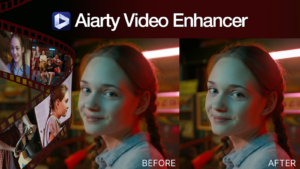
A film can have a compelling story and memorable performances, yet grainy shadows, soft details, and low resolution can distract from what’s on screen. The same issues affect old family recordings, archived clips, and films captured decades ago. These videos often hold precious memories of people, places, and moments that can never be recreated. Even as the video ages, we still want to preserve these memories and keep them alive for years to come. AI video restoration offers a way to make aging videos clearer on modern displays.
Aiarty Video Enhancer helps bring these treasured videos closer to how we remember them. By reducing noise, restoring fine details, and upscaling low-resolution footage, it gives old films and personal recordings a new lease on life while working within the limits of what AI can realistically recover.
For those interested in trying it, a holiday discount is currently available on the lifetime license at 45% off for up to 3 computers, with free lifetime updates and unlimited commercial use. Check the discount offer here.
What Video Quality Issues Can AI Enhancement Address?
A memorable performance, a distinctive location, or a moment that ties a scene together may be difficult to recreate. Before discarding the clips, it is worth identifying what affects its quality and whether targeted enhancement can make it usable.
Different problems call for different approaches:
- Low resolution: Older films and compressed online clips may look unclear on modern displays. Upscaling increases output resolution and can reconstruct plausible details, but it cannot guarantee recovery of information that was never captured.
- Visible noise: Dark scenes and high-ISO recordings may contain distracting grain or colored speckles. Denoising can reduce these distractions, but excessive processing may also remove fine textures.
- Soft or blurry details: Video may lack clear edges and recognizable textures. AI enhancement can improve perceived detail, although severely defocused or motion-blurred footage may remain difficult to recover.
- Compression artifacts: Blockiness, ringing, and other encoding defects can distract from the image. How much they can be reduced depends on their severity and the source material.
These problems often overlap. A low-light close-up, for example, may contain both noise and soft facial details. The goal is to balance noise reduction and detail enhancement while preserving natural textures, rather than maximizing every setting.
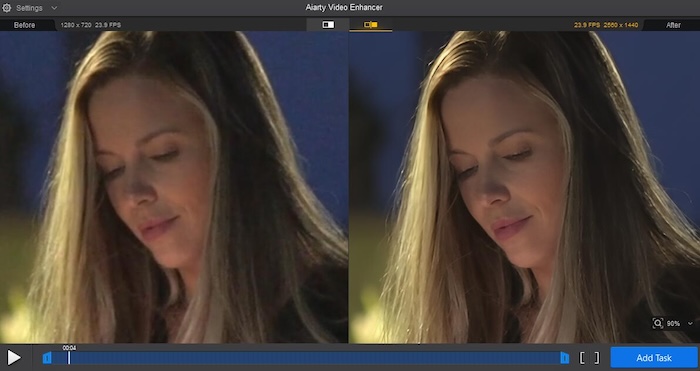
A Practical Video Enhancement Workflow with Aiarty Video Enhancer
Aiarty Video Enhancer brings AI video enhancement tools into a desktop workflow for Windows and Mac. It can be used to restore old films, denoise clips, improve soft details, and upscale low-resolution video. For consistent results, test settings on representative scenes before processing an entire project.
1. Start with a Representative Clip
Import the video and inspect areas that reveal quality issues, such as faces, hair, textured clothing, foliage, and shadow details.
A dimly lit close-up can help evaluate noise reduction and facial detail, while an older home video with moving subjects can reveal how well textures hold up during playback. If a project contains different types of videos, test them separately rather than applying identical settings to every clip.
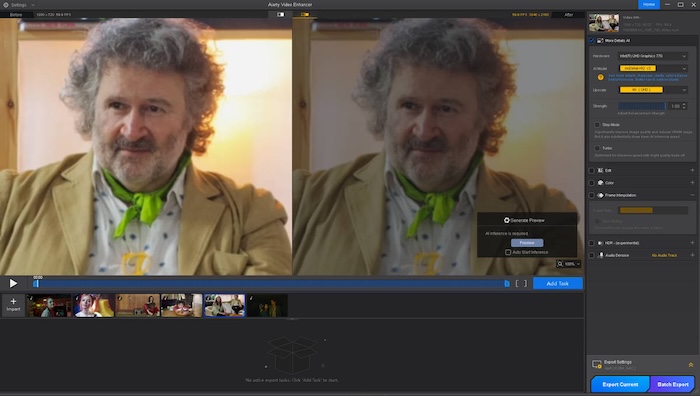
2. Choose an Enhancement Model and Upscaling Factor
Select an AI model based on the video’s main issue, such as noise, soft details, or unclear facial features. Then choose an output option that suits your project. Aiarty Video Enhancer supports 2x and 4x upscaling, as well as output resolutions such as 720p, 1080p, and 4K. A 2x upscale may be sufficient for a moderate resolution boost, while 4x may be more appropriate for low-resolution films that needs a larger output.
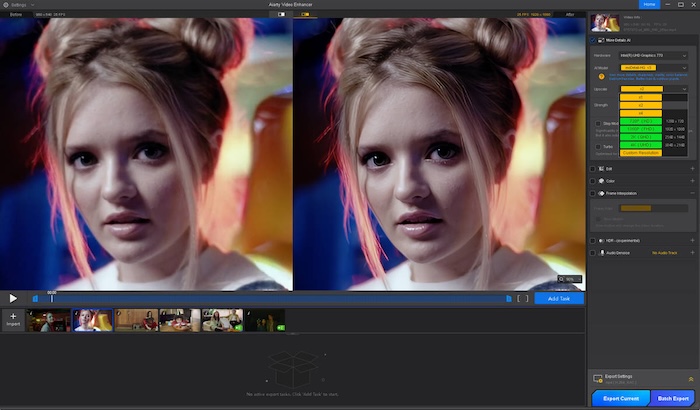
3. Fine-Tune the Enhancement Strength
Adjust the enhancement strength to balance clarity with natural-looking detail. Look for improved textures and facial features without waxy surfaces, harsh edges, or overly reconstructed details. If the result looks artificial, reduce the strength or reconsider your model choice. The goal is to improve the video while preserving its original character and ensuring it fits the surrounding shots.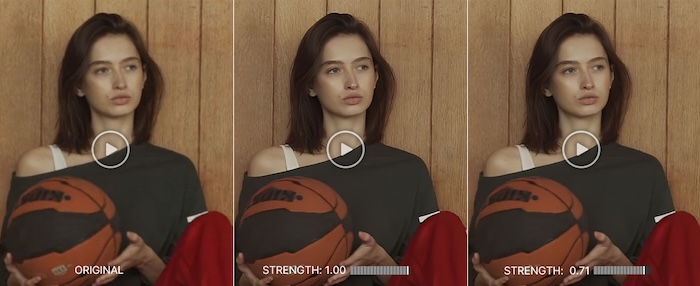
You can also fine-tune color to help the enhanced video look more balanced. Keep adjustments subtle so skin tones, shadows, and the overall look remain consistent with the surrounding shots.
4. Preview the Result Before Exporting
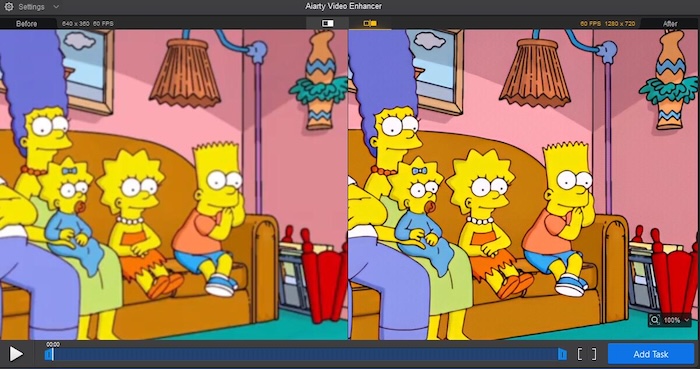
Use Aiarty’s preview to compare the original and enhanced frame, paying attention to facial details, textures, and edges. This helps you assess whether the selected model and enhancement strength deliver a natural-looking result. Once satisfied, export the clip in a format supported by your workflow, such as MP4 or MOV.
How Aiarty Video Enhancer Handles Large Video Projects
Processing footage for a film or a large video archive involves more than enhancing individual clips. Large files, varied source quality, and lengthy export times can all add to the workload.
Process Multiple Clips in Batches. When a project contains many clips, enhancing them one by one can be time-consuming. Aiarty Video Enhancer supports batch processing, allowing you to process multiple files together. Test representative clips first and adjust the settings as needed to avoid applying unsuitable settings across the entire batch. Apply the desired settings to each clip, click “Add Task” to queue them, then hit “Batch Export” to process all clips at once.
Resume Interrupted Export Tasks. High-resolution films and large batches may take considerable time to process, depending on your hardware and settings. If you need to restart Aiarty before an export task finishes, you can resume unfinished tasks rather than necessarily starting over.
Keep Private Footage on Your Computer. If you’re enhancing personal videos or old family recordings, you may prefer not to upload them to an online service. Aiarty processes videos locally, so your footage can be enhanced without uploading it to the cloud.
Restore Old Videos and Relive Precious Memories
Aging video does not always need to be discarded. With realistic expectations and careful enhancement, old clips may still find a place in a new edit, even if AI cannot fully recover severe blur or missing details.
Aiarty Video Enhancer helps denoise, enhance details, and upscale footage while supporting local and batch processing. Currently, its lifetime license with lifetime updates available for $129 (45% off), at a limited period for 3 computers.
Restoring and upscaling old films can help preserve their original charm while making precious videos clearer and more enjoyable to watch on modern screens. Revisit precious memories with family and friends, bringing a touch of nostalgia and warmth to your holiday celebrations.